Best Models for Coding on Consumer GPUs: Write Code Faster for Free
Best Models for Coding on Consumer GPUs: Write Code Faster for Free
Your gaming PC or creator laptop already has a powerful graphics card inside it. Did you know you can use that same card to run a smart AI coding assistant — completely free, completely private, and completely offline?
No monthly subscription. No code leaving your computer. No waiting for a remote server to respond. Just fast, helpful code suggestions running directly on hardware you already own.
This guide helps you find the exact AI coding model that fits your specific graphics card — so you can start writing better code today without spending a single dollar.
1. Coding Locally on Everyday Hardware
Most AI coding tools you've heard of — GitHub Copilot, Cursor, Claude Code — work by sending your code to a remote server, getting an answer back, and charging you for the privilege. That works fine until you hit a private project, a slow internet connection, or a billing limit.
Running AI coding tools locally changes all three of those problems at once:
- Speed — the AI responds in seconds because it's running on your own machine, not waiting for a network round-trip
- Privacy — your code, your logic, your business ideas never leave your computer
- Cost — once the model is downloaded, it costs you nothing to run, ever
The only question is: which model fits your hardware? That's exactly what this guide answers.
2. What Makes an AI Model Good at Coding?
Before we get to the model list, let's quickly cover the three things that actually matter when you're using AI to help you write code.
Instruction Following
This is the model's ability to understand what you actually want. A good coding model hears "Build me a React table with sorting and pagination" and writes working code for it — not a generic table with none of those features. Poor instruction following means you spend more time fixing the AI's output than writing code yourself.
Syntax Accuracy
Code is unforgiving. A missing bracket, a wrong comma, or one misspelled variable name breaks everything. A good coding model produces clean, runnable code on the first try. A mediocre one gives you something that looks almost right but crashes the moment you run it.
Context Window Size
Think of the context window as the AI's short-term memory. It's how much of your code the model can read at one time. A small context window (say, 2,000 tokens) means the model can only see one small file — so it might write a function that conflicts with something you wrote in another file. A large context window (32,000 tokens or more) means the model can read your entire project and understand how everything fits together.
Simple rule of thumb: For small scripts and single-file projects, any model works. For multi-file applications, bigger context windows matter a lot.
3. The Top Coding Models for Consumer GPUs
Here's the practical breakdown by how much graphics card memory (VRAM) you have. VRAM is the dedicated memory on your graphics card — not your regular computer RAM. You can check yours in Task Manager (Windows) or Activity Monitor (Mac).
Budget Setups — 4 GB to 8 GB VRAM
Best picks: Qwen 2.5-Coder 1.5B and Gemma 4 2B (also called gemma4:e2b in Ollama)
These tiny models are built for exactly this situation. They're small enough to load instantly and respond in under a second, even on a laptop GPU. Don't let the small size fool you — for everyday tasks like writing functions, fixing bugs, and explaining code snippets, they're genuinely useful.
Qwen 2.5-Coder 1.5B— trained specifically on code, very accurate syntax, great for Python and JavaScriptGemma 4 2B— faster and better at following instructions than older models of the same size
# Run either model with Ollama
ollama run qwen2.5-coder:1.5b
ollama run gemma4:e2b
Honest advice: At this VRAM tier, keep your context short. Paste in one function at a time, not an entire file. You'll get much better results.
The Sweet Spot — 12 GB to 16 GB VRAM
Best picks: Qwen 2.5-Coder 7B and Gemma 4 4B (also called gemma4:e4b)
This is where local AI coding becomes genuinely powerful. These models are smart enough to handle full files, understand complex logic, and write multi-function code blocks correctly. If you have an RTX 3060 12 GB, RTX 4060 Ti 16 GB, or a Mac with 16 GB unified memory, you're in this tier.
Qwen 2.5-Coder 7B— exceptional at code completion and debugging, handles TypeScript and Python extremely well, great instruction followingGemma 4 4B— fast, snappy responses, solid at general coding and explaining what code does
ollama run qwen2.5-coder:7b
ollama run gemma4:e4b
The Qwen 2.5-Coder 7B is arguably the best value for money in the entire open-source coding model world right now. At this size it consistently impresses with clean, working output on real-world tasks.
Heavy-Duty Consumer Hardware — 24 GB VRAM (RTX 3090 / RTX 4090)
Best pick: Gemma 4 26B (also called gemma4:26b)
This is the big one. Gemma 4 26B is a Mixture-of-Experts model — which means it has 26 billion parameters in total, but only activates 3.8 billion of them on each response. Think of it like a team of 128 specialists where only the most relevant ones show up for each task. You get the intelligence of a very large model at the speed of a small one.
On a 24 GB GPU it runs comfortably, delivers world-class coding output, and handles large context windows without slowing down.
- LiveCodeBench v6 score: 77.1% — one of the highest scores of any open-weight model
- Codeforces ELO: 1718 — expert-level algorithmic problem solving
- Native function calling, structured JSON output, 256K context window
ollama run gemma4:26b
Hardware note:
Gemma 4 26Bat Q4_K_M quantization (Q4 is like a compressed version — slightly smaller quality trade-off, but fits on your GPU) uses about 16–18 GB of VRAM. This leaves enough headroom on a 24 GB card for a reasonable context window. Perfect fit for an RTX 4090.
4. The VRAM Wall — When Big Projects Crash Your PC
Every developer running local AI eventually hits the same wall. You're deep in a complex feature, you paste in several files for context, and then — crash. Or worse, the model doesn't crash but suddenly takes four minutes to generate one line.
Here's what's actually happening:
The Out-Of-Memory (OOM) Error
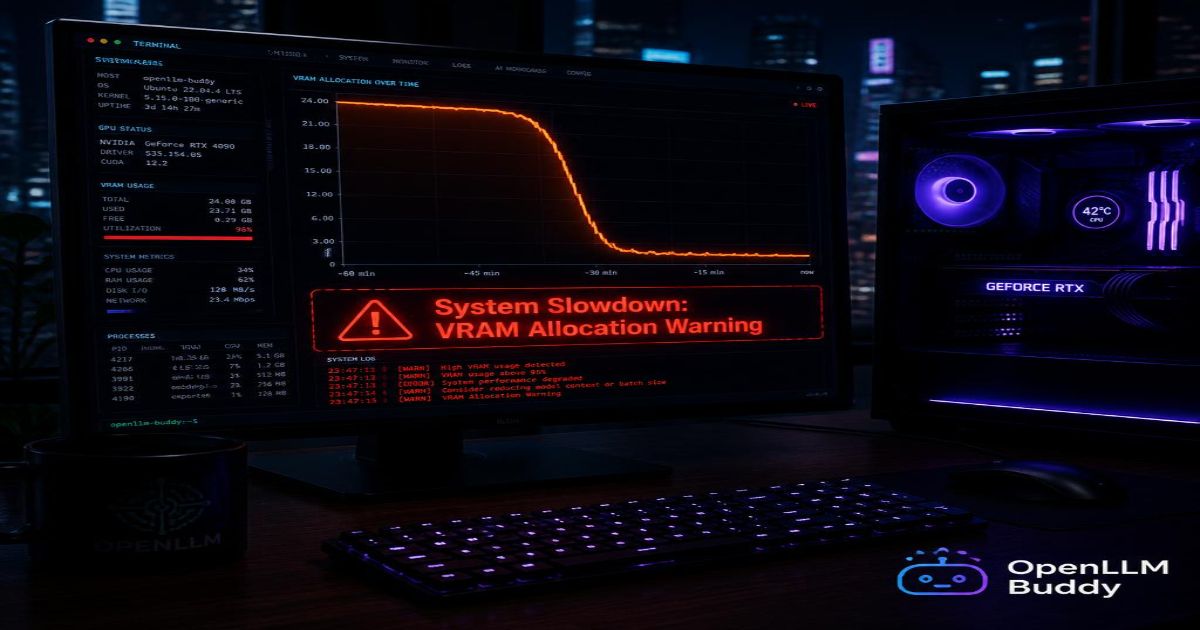
Your graphics card has a fixed amount of VRAM — like a small, very fast desk. The AI model sits on that desk while it works. When you paste in too much code, the desk gets full, and the model has nowhere to put the new information. The terminal crashes, your model closes, and you lose your whole conversation context.
This usually shows up as an error message like CUDA out of memory or OOM: CUDA error.
The Extreme Slowdown
Sometimes instead of crashing, the model quietly spills over from your fast GPU memory into your regular computer RAM. Your system RAM is like a filing cabinet in another room — the AI can still use it, but accessing it takes much longer. What used to take 2 seconds now takes 3 minutes per response. Your coding flow completely dies.
Quick fix for OOM errors: Lower your context window. In Ollama, you can create a custom model with a smaller
num_ctxvalue. Start withnum_ctx 8192— that's plenty for most single-file coding tasks.
# Create a context-limited version of your model
cat > Modelfile << 'EOF'
FROM gemma4:26b
PARAMETER num_ctx 8192
EOF

ollama create gemma4-coding -f Modelfile
ollama run gemma4-coding
This lets you keep the intelligence of the big model while staying safely inside your VRAM limit.
5. Scale Up Seamlessly with OpenLLM Buddy
Local GPU coding is excellent for everyday development. But there are moments when your personal hardware just can't keep up:
- You're processing a large codebase with 50+ files
- You're running an automated coding agent with many repeated calls
- You want to share an AI coding endpoint with a colleague
- Your laptop is overheating from extended GPU load
When that happens, OpenLLM Buddy is the cleanest upgrade path. It runs Gemma 4 26B and Qwen 3.6 27B on dedicated NVIDIA RTX 4090 and RTX 5090 cloud hardware — the same models you've been running locally, on faster hardware, accessible via a simple API link.
The pricing is completely different from standard API providers: token consumption is 100% free. You pay a flat rate for the minutes the cloud GPU is running, and nothing else. No per-token charge. No surprise bill because you fed it a large codebase.
| Plan | Gemma 4 26B (RTX 4090) | Qwen 3.6 27B (RTX 5090) |
|---|---|---|
| 11 Hours | $10 | $14 |
| 24 Hours | $22 | $31 |
| 1 Week | $150 | $212 |
Connecting your code editor — VS Code, Cursor, Neovim, or any OpenAI-compatible setup — takes one change:
import openai

# Connect your coding environment to a fast, token-free cloud GPU
client = openai.OpenAI(
    base_url="https://api.openllmbuddy.cloud/v1",
    api_key="YOUR_OPENLLM_BUDDY_KEY"
)

response = client.chat.completions.create(
    model="gemma-4-26b-a4b",
    messages=[
        {"role": "system", "content": "You are an expert software engineer."},
        {"role": "user", "content": "Refactor this function to use async/await: [your code here]"}
    ],
    temperature=0.1
)
print(response.choices[0].message.content)
The base_url is the only thing that changed from your local Ollama setup. Every prompt, every tool, every editor plugin that worked locally keeps working — just faster, with more VRAM headroom, and at a flat predictable cost.
Quick Reference — Which Model Should You Use?
| Your GPU | VRAM | Best Model | Command |
|---|---|---|---|
| Laptop / budget card | 4–8 GB | Qwen 2.5-Coder 1.5B | ollama run qwen2.5-coder:1.5b |
| Mid-range desktop | 12–16 GB | Qwen 2.5-Coder 7B | ollama run qwen2.5-coder:7b |
| RTX 3090 / 4090 | 24 GB | Gemma 4 26B | ollama run gemma4:26b |
| Need more headroom | Any | OpenLLM Buddy cloud | Change base_url |
Pick your tier. Run the command. Start writing better code today — for free.