Why Your Local LLM Setup Suddenly Became Slow (And How to Fix It)
Why Your Local LLM Setup Suddenly Became Slow (And How to Fix It)
1. The Local AI Speed Mystery
Remember that amazing feeling when you first got a powerful open model like Qwen 3.6 27B or Llama 3.2 running on your own computer? No monthly fees. No data leaving your desk. Just pure, fast AI generation.
Yesterday, your setup was blazing fast — 35 tokens per second. You were answering questions instantly, refactoring code in seconds, and feeling like a genius.
Today? Your AI is crawling at 2 to 3 tokens per second. You type a question, go make coffee, come back, and the answer is still only half-finished.
Do not panic. Your hardware is not broken. You do not need to buy a new computer.
When local AI setups suddenly collapse in speed, it almost always comes down to three hidden traps. And they are incredibly simple to fix.
What is a token? A token is just a piece of a word. "Hello" is one token. "Hello world" is two tokens. 35 tokens per second means your AI was writing about 200 words every 6 seconds — faster than you can read.
2. Trap 1: The Invisible VRAM Spillover
What Is VRAM Spillover? (Simple Analogy)
Imagine you are packing for a trip. You have a suitcase (your graphics card memory, or VRAM). The suitcase can only hold so many clothes.
If you try to stuff too many shirts and pants inside, the suitcase bulges. Eventually, clothes start spilling out onto your floor. Now you are dragging a heavy suitcase and carrying loose clothes in your arms. Your trip slows down dramatically.
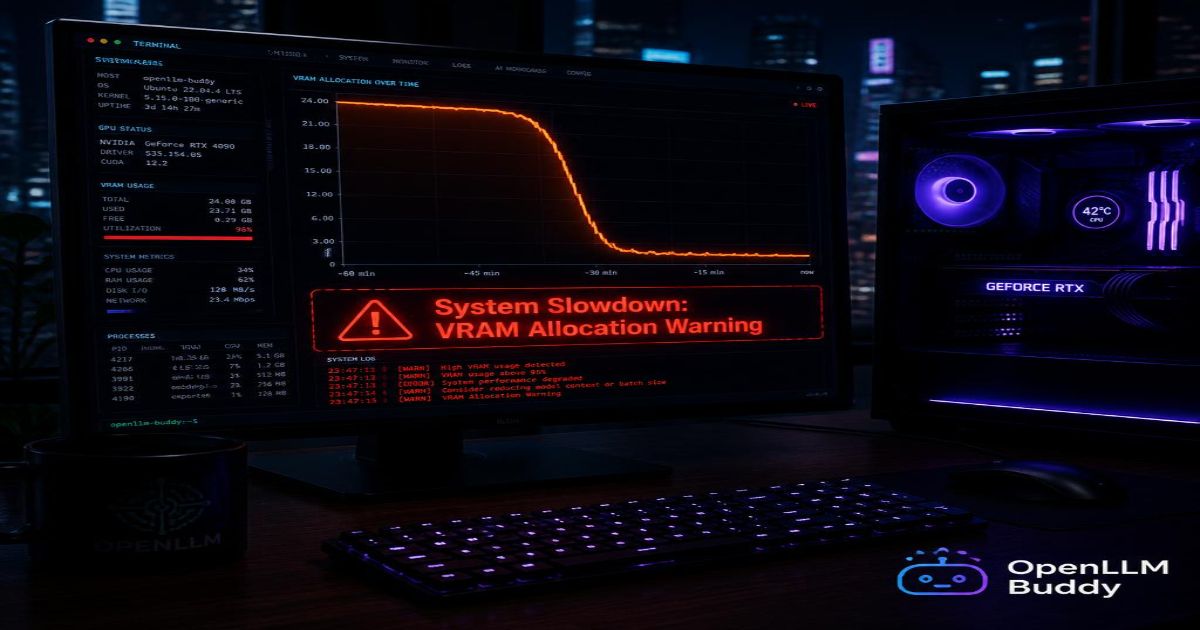
VRAM spillover is exactly the same. Your AI model needs to fit entirely inside your graphics card's memory to run fast. If it spills over into your computer's regular system RAM, everything slows to a crawl.
What Causes This?
Here is what might have happened since yesterday:
- You opened a web browser with 30 tabs open (each tab steals a little VRAM)
- You booted up a game and left it running in the background
- You watched a YouTube video while trying to run your AI
- Your video editing app stayed open
All these background programs steal small chunks of your graphics card memory. By the time your AI model tries to load, there is not enough space left. The software quietly dumps the extra model layers into your slow system RAM. Your speed drops off a cliff instantly.
How to Fix It
The Quick Test: Close every single background app. Restart your AI engine. Test the speed again.
If speed returns to normal, you found the culprit. Keep fewer apps open while running local AI.
The Permanent Fix: Use a smaller, more compressed version of your model. Switch to a Q4_K_M file format instead of the larger Q8_0 version. It uses less VRAM and still delivers excellent quality.
# Example: Run a smaller compressed model that fits easily in your VRAM
ollama run qwen3.6-coder:7b --set num_ctx 4096
Warning: If your model does not fit in VRAM at all, you will see slow speeds from the very first word. Check your model's file size versus your graphics card's total memory.
3. Trap 2: The Context Window Expansion Wall
What Is the KV Cache? (Simple Analogy)
Imagine you are having a long text conversation with a friend. To understand what you just said, your friend has to remember everything you both said earlier in the conversation.
Now imagine that every time you write a new sentence, your friend has to re-read the entire chat history from the beginning. The 2-minute conversation is fine. But after 2 hours, re-reading everything takes forever.
That is exactly how AI works. The AI keeps a scratchpad called the KV cache. It stores everything you have talked about. Every time you ask a new question, the AI re-reads the entire cache.
What Causes This?
When your conversation gets longer than about 4,000 to 8,000 tokens (roughly 3,000 to 6,000 words), the memory required to hold this history expands rapidly. The AI engine has to use complex, heavy math routines to crunch all that text.
Your first question of the day: Lightning fast (empty cache) Your 20th question of the day: Noticeably slower (full cache) Your 50th question of the day: Crawling (cache overflowing)
How to Fix It
The Immediate Fix: Clear your chat window and start a fresh conversation. The cache empties, and speed returns instantly.
The Configuration Fix: Adjust your settings to limit the context window size. This prevents the cache from growing too large.
# Example flag to safely limit your context space and save graphics card memory
ollama run qwen3.6-coder:7b --set num_ctx 4096
Pro Tip: For long coding sessions, restart your AI every hour. A fresh cache keeps speeds fast. Most developers do not need the full 128K or 256K context window anyway.
4. Trap 3: Summer Heat and Dust (The Thermal Trap)
What Is Thermal Throttling? (Simple Analogy)
On a hot summer afternoon, if you run laps outside, your body gets hot. You slow down. You take breaks. You do this so you do not pass out from heat exhaustion.
Your computer does the exact same thing.
When an AI model works hard, it pushes your graphics card to 100% processing power for minutes at a time. The chip gets very hot — over 85°C (185°F). If it gets too hot, the card will automatically slow itself down to prevent permanent damage. This is called thermal throttling.
What Causes This?
- Dust has built up inside your computer case over the last few months
- You are running a heavy model on a closed laptop (laptops have terrible airflow)
- Your computer's cooling fans are failing or set to "silent" mode
- The room temperature is higher than usual (summer heat wave)
How to Fix It
The Quick Fix: Turn off your computer. Wait 10 minutes for it to cool down. Turn it back on. Test the speed.
The Permanent Fix:
- Open your computer case and gently clean dust from the fans and vents
- Move your laptop to a hard, flat surface (not a bed or pillow)
- Install a simple temperature monitoring tool to check your GPU heat
- Adjust your fan curves to spin faster when temperatures rise
# On Linux, check your GPU temperature
nvidia-smi

# Look for the temperature reading. If it is above 85°C while idle, you have a cooling problem.
Warning: If your laptop gets too hot to touch near the keyboard, stop running local AI immediately. You risk permanent hardware damage.
5. The Diagnostic Cheat Sheet
Here is a quick reference table. Find your symptom, apply the fix, get back to work.
| What Your Screen Looks Like | The Most Likely Hidden Culprit | The Instant Fix to Restore Speed |
|---|---|---|
| Starts fast, then slows down after 30 words | Your graphics card is overheating | Clean system dust or check fan curves |
| Runs incredibly slow from the very first word | Model spilled over into slow system RAM | Close your web browser tabs and restart your engine |
| Slows down only inside long, multi-page chats | Your conversation history is too large | Clear your chat window or adjust num_ctx limits |
6. Escape the Local Bottleneck: Scalable Cloud with OpenLLM Buddy
Sometimes, local hardware just hits a wall. You have cleaned the dust. You have closed your browser tabs. You have restarted fresh conversations. But your 3-year-old laptop still cannot run a 27-billion parameter model fast enough.
That is not your fault. It is physics.
Instead of spending hours managing your laptop's memory limits, worrying about computer heat, or closing your favorite browser tabs just to make your AI run smoothly, you can move your work to heavy cloud infrastructure.
What OpenLLM Buddy Does
OpenLLM Buddy hosts uncompressed, full-precision open models for you on enterprise-grade graphics card networks. Our infrastructure includes:
- Premium NVIDIA RTX 4090 and next-gen RTX 5090 systems
- Running on ultra-fast RunPod nodes
- Enterprise-grade cooling, power, and security
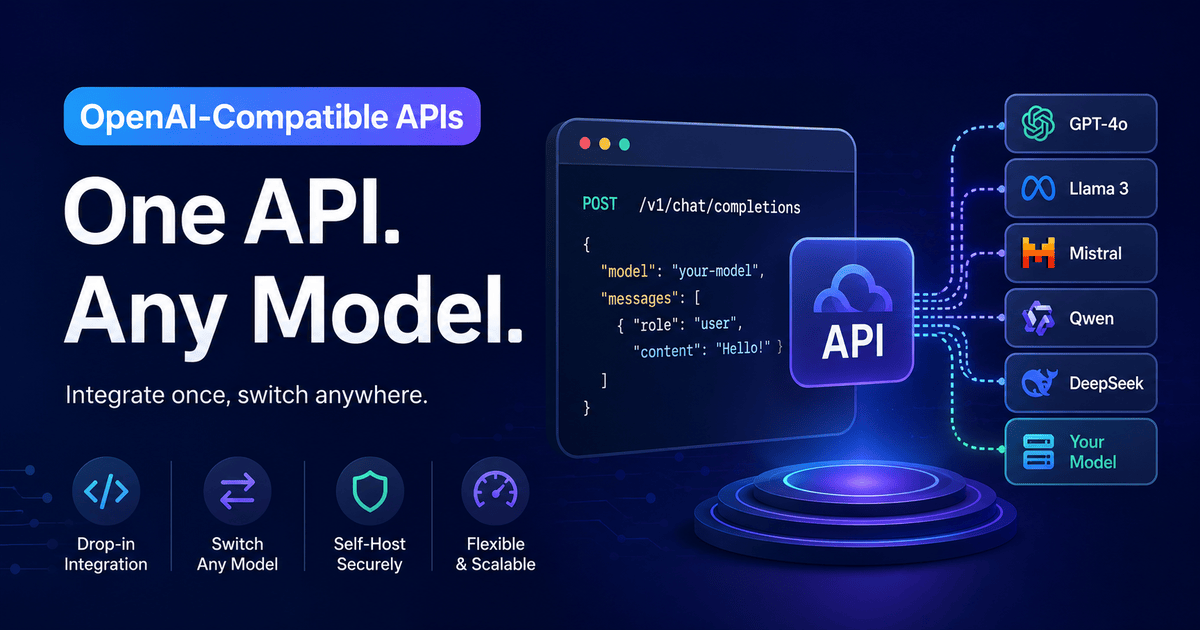
- A ready-to-use API link — no setup required
You never buy a $2,000 graphics card. You never clean dust out of fans. You never hear loud fans again.
Our Flat-Rate Value Proposition
We don't count your words or track your token limits. We only charge your company a flat, predictable rate of just $0.50 per hour for the raw minutes our cloud hardware is actively spinning. All your input tokens, output tokens, and heavy background agent loops are 100% FREE.
| Problem | Local Desktop | OpenLLM Buddy |
|---|---|---|
| VRAM spillover | Happens constantly | Never (enterprise GPUs) |
| Overheating | Yes (dust, fans, summer heat) | Never (data center cooling) |
| Context window slowdown | Yes (cache overflow) | Handled automatically |
| Token fees | $0 | $0 |
| Hourly cost | $0.10 (electricity) + hardware wear | $0.50 |
Connect in Seconds
Here is how easy it is to move away from local terminal crashes and switch to a flat-rate cloud API:
import openai

# Move away from local terminal crashes and switch to a flat-rate cloud API link
client = openai.OpenAI(
    base_url="https://api.openllmbuddy.cloud/v1",
    api_key="YOUR_OPENLLM_BUDDY_KEY"
)

# Now you can run massive code repositories all night
# Execute long autonomous software agents for hours
# Process huge documents without ever hearing a loud fan
Total Peace of Mind
With OpenLLM Buddy, you can:
- Run massive code repositories all night — no overheating, no crashes
- Execute long autonomous software agents — your loops keep running without interruption
- Process huge documents — the 256K context window works perfectly on cloud hardware
- Never hit an "Out of Memory" (OOM) terminal crash again
The Bottom Line
Local AI is amazing. But when it slows down, you are usually facing one of three problems:
- VRAM spillover — too many background apps stealing memory
- Context window wall — your conversation history is too long
- Thermal throttling — your computer is too hot
Try the fixes in this guide first. Clean the dust. Close your tabs. Start fresh conversations.
But if your hardware simply cannot keep up, do not suffer. Move to the cloud.
Hop onto OpenLLM Buddy and run your favorite models at maximum speed today.
Visit openllmbuddy.cloud to get started
No free tier. Just flat-rate, predictable pricing at $0.50 per hour. Zero token fees. Maximum performance.