Nemotron 3.5 Super VL VRAM and GPU Requirements: FP8 vs BF16
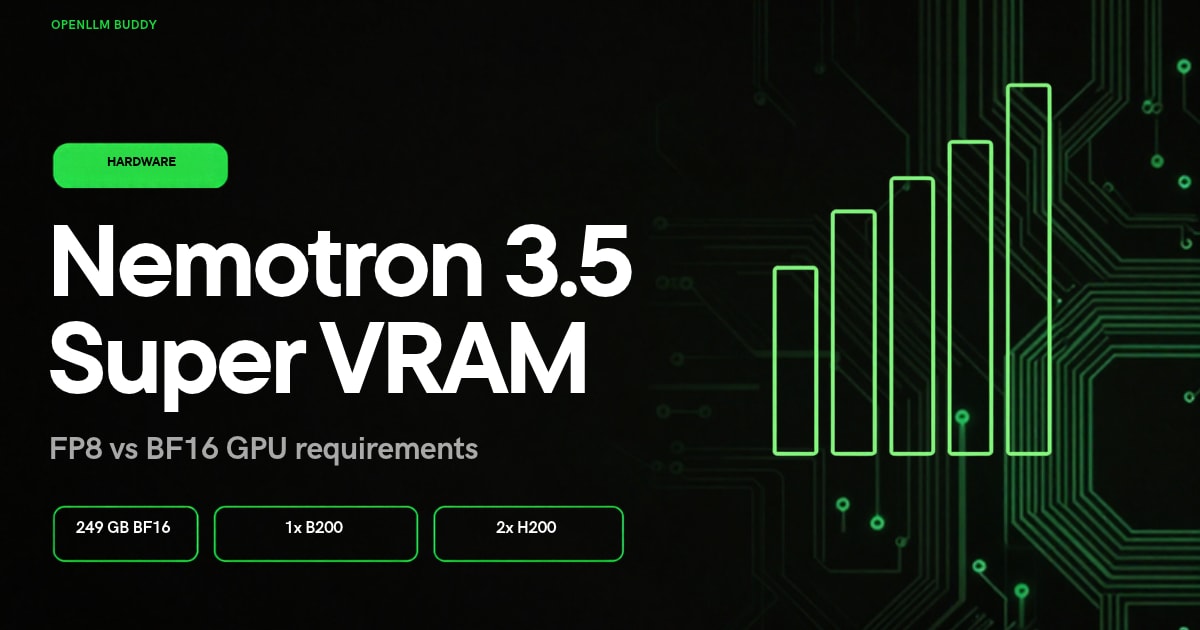
Nemotron 3.5 Super VL 120B-A12B weighs about 249 GB at full precision (BF16). Loaded as FP8 it runs on 2× RTX PRO 6000 (192 GB), one B200 (180 GB) or 2× H200 (282 GB); full precision runs on 2× B200 (360 GB). On OpenLLM Buddy the pod refuses to start below 150 GB of total GPU memory.
This guide covers the memory budget, what FP8 and BF16 mean, which GPU sets run which, why the 150 GB floor exists as a hard line, and what running the model on your own hardware involves. The build on our pods is Nemotron 3.5 Super Uncensored; for what the model does and how to call it, see the Nemotron 3.5 Super Uncensored guide.
The memory budget
Nemotron 3.5 Super is a mixture-of-experts model: 120B parameters in total, about 12B active for each token. Only the active part does work per token, but every expert has to be loaded and ready, so the full 120B sets the memory bill.
Full precision stores each weight in 16 bits, which is 2 bytes. 120 billion weights at 2 bytes each come to about 240 GB before the vision tower and the multi-token-prediction (MTP) head are counted, which is in line with the 249 GB of files.
| Part | Memory | Notes |
|---|---|---|
| Weights at full precision (BF16) | about 249 GB | The full-precision option on 2× B200 |
| Weights loaded as FP8 | Roughly half of that, by arithmetic | Our standard pods; exact footprint not published |
| Context cache | Grows with the tokens held | Our pods serve up to 1M; size not published |
| Vision handling, MTP head, runtime | Not published | Present on every pod |
| Minimum total GPU memory | 150 GB | Below this the pod refuses to start |
The rows marked "not published" are honest gaps. We have a figure for the full-precision weights, for the GPUs and for the floor. We do not have a measured breakdown of the rest for this model, so this guide does not invent one. "Roughly half" for FP8 is simple arithmetic on bits per weight, not a measurement.
The weights are the fixed cost. The context cache is the variable one: the model keeps a record of the tokens in the conversation so it does not reread the whole prompt for every new token, and that record lives in GPU memory. How AI caching works explains the mechanism. With a window of up to 1M tokens, around 750,000 words, the variable part deserves real headroom.
FP8 versus BF16
Both are ways of writing down the same model. They differ in how many bits each weight gets.
BF16 is a 16-bit floating-point format. It is the full-precision form of this model: the 249 GB figure is the BF16 size. Nothing is rounded beyond what the maker released.
FP8 is an 8-bit floating-point format. Each weight is rounded to fit in half the space. The model needs roughly half the memory for its weights, and the rounding costs a small amount of precision.
| FP8 | BF16 | |
|---|---|---|
| Bits per weight | 8 | 16 |
| Weight memory | Roughly half of 249 GB | about 249 GB |
| GPU sets on OpenLLM Buddy | 2× RTX PRO 6000, 1× B200, 2× H200 | 2× B200 |
| Total GPU memory of those sets | 192 GB, 180 GB, 282 GB | 360 GB |
| Role | The standard pods | The full-precision option |
How much does the rounding matter? For most chat, coding and document work, 8-bit weights on a model this size are a common and accepted trade. We have no published FP8-against-BF16 quality comparison for this model, so we will not put a number on the difference. If your task is sensitive to small numeric shifts, such as reproducing a benchmark score or comparing outputs against a reference run, the full-precision option exists for that reason. Otherwise FP8 is the default, and it is what makes the smaller GPU sets possible at all.
FP8 is not the same thing as the 4-bit files common for small models on consumer cards. It keeps twice as many bits per weight as those do.
Which GPU sets run which
| GPU set | Cards | Total GPU memory | Weights loaded as | Against the 150 GB floor |
|---|---|---|---|---|
| 1× B200 | 1 | 180 GB | FP8 | 30 GB above |
| 2× RTX PRO 6000 | 2 | 192 GB | FP8 | 42 GB above |
| 2× H200 | 2 | 282 GB | FP8 | 132 GB above |
| 2× B200 | 2 | 360 GB | BF16 | 210 GB above |
A few points about that table.
One B200 is the only single-GPU option. With one card there is nothing to split. On the two-card sets the model is served by vLLM with tensor parallelism, which cuts each layer into equal slices, one per GPU, and has the cards exchange results for every token.
2× H200 has the most memory of the FP8 sets. On paper its 282 GB even exceeds the 249 GB of full-precision weights, but that would leave about 33 GB for the context cache, vision and runtime. Our pods load FP8 on this set.
2× B200 is the full-precision set. 360 GB leaves about 111 GB after 249 GB of BF16 weights.
All four serve the same model with tool calls, reasoning, vision and MTP on.
The 150 GB floor and why smaller GPUs fail
Below 150 GB of total GPU memory, the pod refuses to start. This is a deliberate check, not a crash halfway through loading. A pod that started with too little memory would either fail while loading the weights or run out of room as soon as the context grew. Refusing at the start is the cleaner failure.
Here is where common GPUs stand against that line:
| GPU | Memory | Against the 150 GB floor |
|---|---|---|
| RTX 4090 | 24 GB | 126 GB short |
| RTX 5090 | 32 GB | 118 GB short |
| H100 | 80 GB | 70 GB short |
| RTX PRO 6000 | 96 GB | 54 GB short |
| H200 | 141 GB | 9 GB short |
| B200 | 180 GB | 30 GB above |
Every single card below the B200 falls short, including the 141 GB H200. That is why the RTX PRO 6000 and the H200 appear in our list only as pairs.
Two cautions when you do your own sums.
The floor is a minimum, not a list of supported sets. Two H100 cards add up to 160 GB, which is above the line. That is not a set we offer for this model, so this guide makes no claim about how it behaves. The sets we run are the four in the table above.
Clearing the floor is not the same as holding a full window. The floor decides whether the pod starts. How much context you can use comfortably depends on what is left after the weights, and that is larger on the sets with more memory.
Why can a 120B model with a 1M window start at 180 GB at all? Two reasons. FP8 halves the weight memory. And the architecture is a Mamba-2 plus Transformer hybrid: a Mamba layer carries a running state of fixed size instead of a cache entry for every token, so in principle the context costs less memory than in a pure Transformer of the same size. That second point is the design intent, not something we have measured on our pods. The Nemotron 3.5 Super Uncensored guide explains the hybrid in plain words.
How to choose between the sets
Speed is not yet measured on our pods for any of the four sets, so this guide gives no tokens-per-second figure and does not rank them by speed. What you can choose on today:
- You want the simplest setup: one B200. A single card, no split across GPUs.
- You want the most room beside FP8 weights: 2× H200, the FP8 set with the most total memory. Worth considering if you plan to fill a large part of the 1M window.
- You want workstation-class cards: 2× RTX PRO 6000. This is also the set closest to something you could own yourself.
- You want the weights at full precision: 2× B200. Choose it when you are evaluating the model or need results that do not depend on 8-bit rounding.
Pack prices follow GPU rental rates, so compare the live price of each set on the Deploy page before you decide. If one use dominates your work, a short pack on the set you are considering tells you more than any table.
If your budget allows a larger model with the same 1M window, Nemotron 3.5 Super vs GLM-5.3-Flash sets the two against each other, and the GLM-5.3-Flash hardware requirements show what the step up costs in GPUs: about 328 GB of weights on 4× H200 or 2× B300.
Running it yourself versus renting a pod
People search for how to run Nemotron 3.5 Super locally. The direct answer: not on a gaming PC. An RTX 5090 has 32 GB, against a 150 GB floor on our pods. The smallest machine in the same class as a set we run is a workstation with two RTX PRO 6000 cards, 192 GB in total.
What running it yourself involves
Hardware. One of the sets above, or its equivalent, in one machine, with the power and cooling those cards need.
Download and storage. About 249 GB of full-precision weight files on fast local storage. You download the full-precision files even if you plan to load them as FP8.
Drivers and runtime. A current NVIDIA driver and CUDA stack for your cards, plus a vLLM version recent enough to know this architecture.
Serving settings. These decide whether the server starts and behaves:
| Setting | vLLM option | What to get right |
|---|---|---|
| Precision | --quantization or the model's dtype | FP8 on the smaller sets, BF16 only with 360 GB |
| Split across GPUs | --tensor-parallel-size | 1 on a single B200, 2 on the pairs |
| Context window | --max-model-len | Too high for your memory and the server fails at start |
| Memory share per GPU | --gpu-memory-utilization | Leave room for image handling |
| Tool calls | --enable-auto-tool-choice with --tool-call-parser | The parser must match the model's tool format |
| Reasoning output | --reasoning-parser | Separates thinking from the final answer |
| MTP | The speculative decoding config | Points the server at the MTP head |
The exact parser names and MTP settings come from NVIDIA's documentation for the model. Take them from there, not from a guess.
The uncensored part. NVIDIA's own weights keep their refusals: on the test set used by the author of our build, the base model refused 100 of 100 prompts. The build on our pods has had a small set of weight matrices edited to remove that behaviour. Running the official files yourself gives you the base model, not this build.
An API in front of it. An endpoint your tools can reach, with a key, over TLS.
What renting a pod gives you
On OpenLLM Buddy the pod arrives with the edited weights loaded, vLLM configured, the 1M window served, tool calls, reasoning, vision and MTP on, and an OpenAI-compatible endpoint with a key in your console. You pick a GPU set and a time pack of 11 hours, 24 hours, a week or a month. You pay for pod time with no per-token billing, and the pod stops when the pack ends.
| Your own machine | A rented pod | |
|---|---|---|
| Hardware | Buy or lease 180 GB or more of GPU memory | Included for the length of the pack |
| Setup | Drivers, vLLM, precision, parsers, MTP, endpoint | Already done |
| Refusal removal | Your own work | Already in the build |
| Cost shape | Up-front, then power and upkeep | A fixed price per pack |
| Best when | The model runs all year at high load | You need it for a project, a test or a burst |
Deploy Nemotron 3.5 Super Uncensored
FAQ
How much VRAM does Nemotron 3.5 Super VL need?
The weights are about 249 GB at full precision (BF16), and roughly half that when loaded as FP8. On OpenLLM Buddy the FP8 pods have 180 GB to 282 GB of total GPU memory, and the pod refuses to start below 150 GB.
Can I run Nemotron 3.5 Super on an RTX 5090 or RTX 4090?
No. An RTX 5090 has 32 GB and an RTX 4090 has 24 GB, far below the 150 GB of total GPU memory our pods require as a minimum for this model.
What GPUs does Nemotron 3.5 Super run on?
On OpenLLM Buddy it runs as FP8 on 2× RTX PRO 6000, one B200 or 2× H200. A full-precision BF16 option runs on 2× B200.
What is the difference between FP8 and BF16 for Nemotron 3.5 Super?
BF16 stores each weight in 16 bits and is the full-precision form, about 249 GB. FP8 stores each weight in 8 bits, which roughly halves the memory at a small cost in precision and lets the model run on smaller GPU sets.
Can Nemotron 3.5 Super run on a single GPU?
Yes, on one B200, which has 180 GB and loads the weights as FP8. Every smaller single card, including the 141 GB H200, is below the 150 GB floor.
How fast is Nemotron 3.5 Super on a B200?
It is not yet measured on our pods, so we give no tokens-per-second figure for any of the GPU sets.